- econofibrenz
- help@econofibre.co.nz
- Languages
- English
- 中文

ROUTER SETUP GUIDETP Link Archer BE230
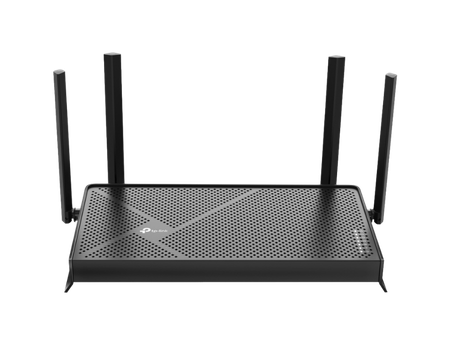
3.6 Gbps Dual-Band WiFi 7: Enables your devices to run at full speed. Enjoy fluent 4K/8K streaming, immersive AR/VR gaming, and blazing-fast downloads.
2× 2.5G Ports: 1× 2.5 Gbps WAN port, 1× 2.5 Gbps LAN port and 3× 1 Gbps LAN ports offer high-speed data transmissions.
4× external antennas along with Beamforming deliver more capacity, stronger and more reliable connections, and less interference.
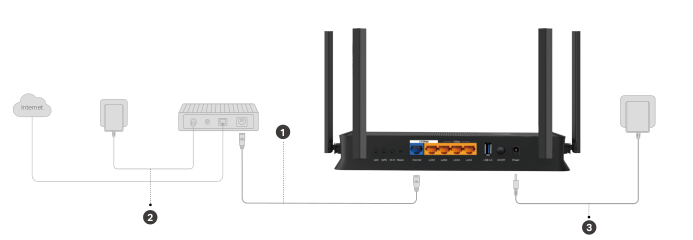
(1) Turn off the modem (ONT)
Note that the modem means the Optical Network Terminal (ONT) device, known as a fibre box.
(2) Connect the modem (ONT) to the router's 2.5 WAN port with an Ethernet cable.
(3) Turn on the modem (ONT), and then wait about 2 minutes for it to restart.
(4) Connect the power adapter to the router and turn on the router.
(5) Verify that the hardware connection is correct by checking the following LEDs.
Note that if the 2.4GHZ LED and 5GHZ LED are off, press and hold the WPS/Wi-Fi button on the back for more than 2 seconds, then release the button. Both the LEDs should turn solid on.
Option-1. Wired: Turn off the Wi-Fi on your computer and connect the devices as shown below.

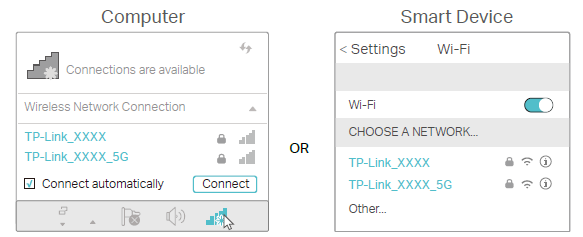
Option-2. Wireless:
a. Find the SSID (Wi-Fi name) and a password printed on the label at the bottom of the router.
b. Click the network icon of your computer or go to the Wi-Fi settings of your smart devices, and then select the SSID (Wi-Fi name) to join the network.
(1) Open a web browser (e.g. Chrome, Safari, Firefox, etc.) and type the default gateway address (e.g. 192.168.1.1).
Note that the PC you use should be connected to the router via Wired (LAN port) or Wireless (Wi-Fi).
(2) Create a login password to access the router configuration
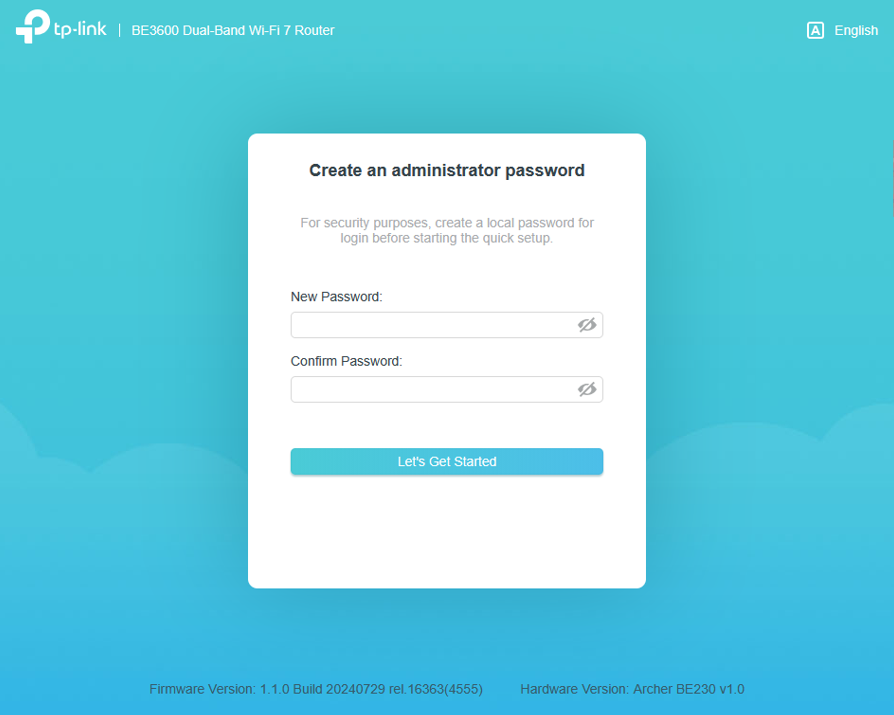
Note that the new password must be 6-32 characters long and contain no space, at least two types of the following characters: letters, numbers and symbols.
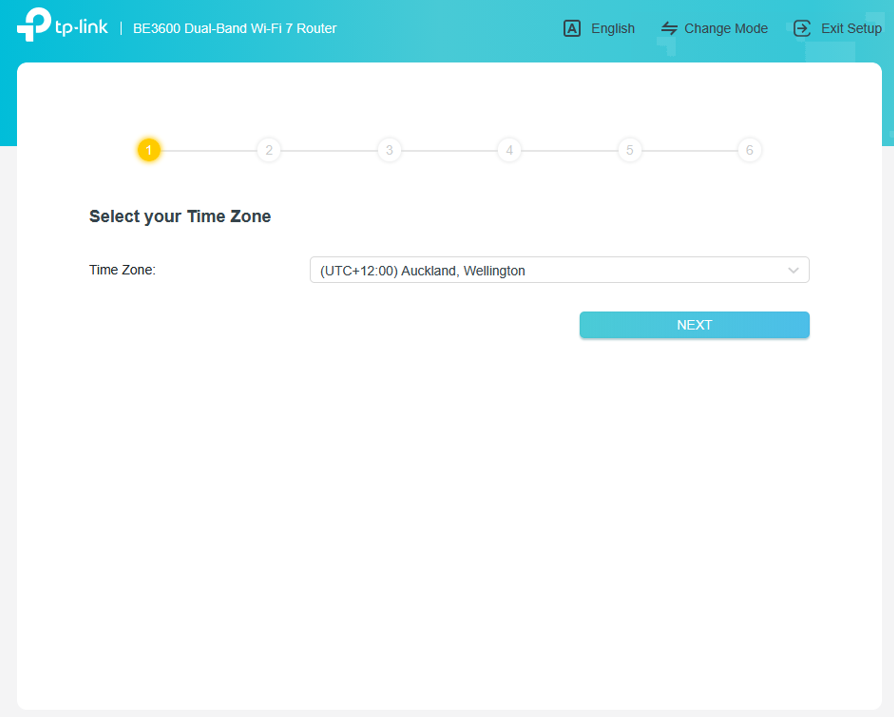
(3) Select your Time Zone
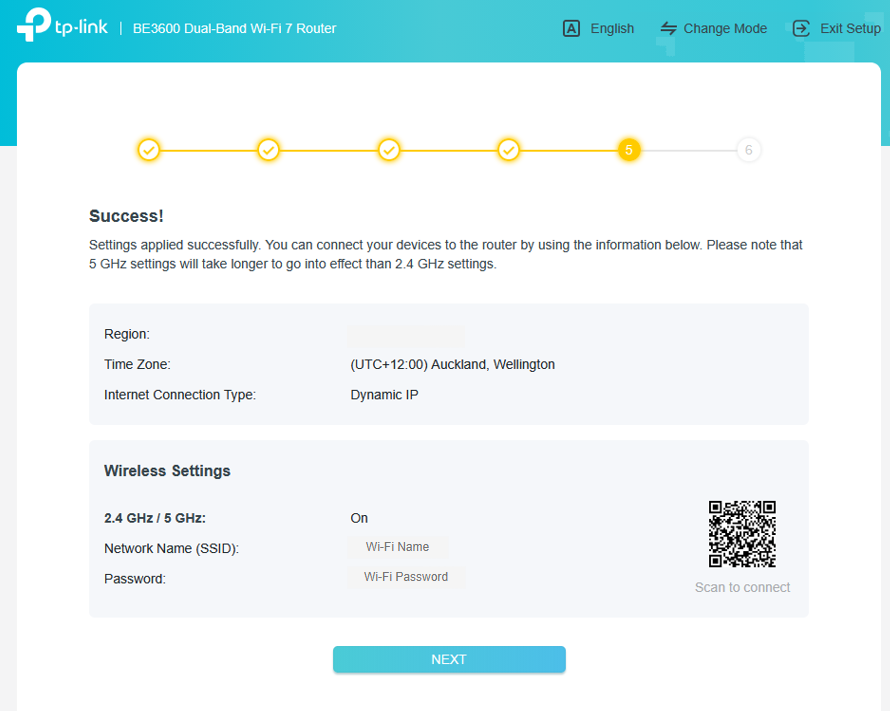
- Time Zone: (UTC+12:00) Auckland, Wellington
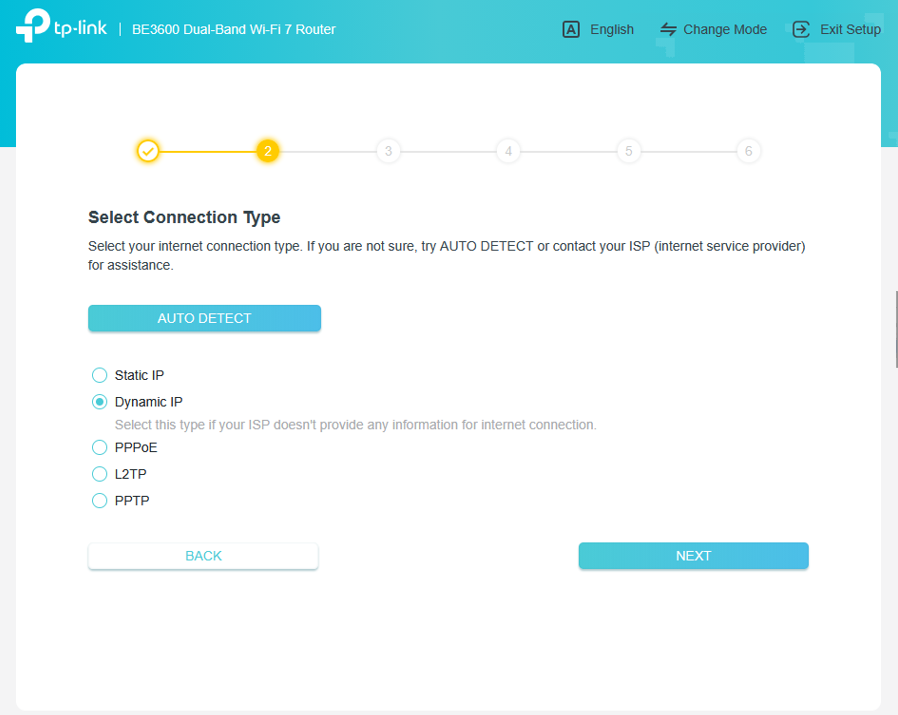
(4) Select Connection Type: [Dynamic IP]
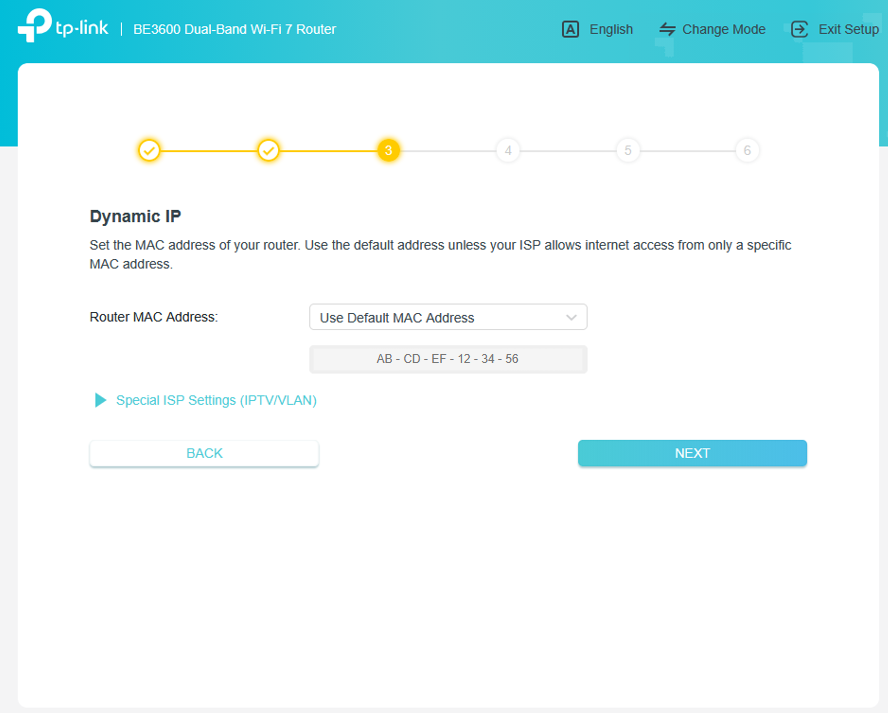
(5) Set the MAC address of your router (Note that you can skip this step)
(6) Set your Wi-Fi name and password
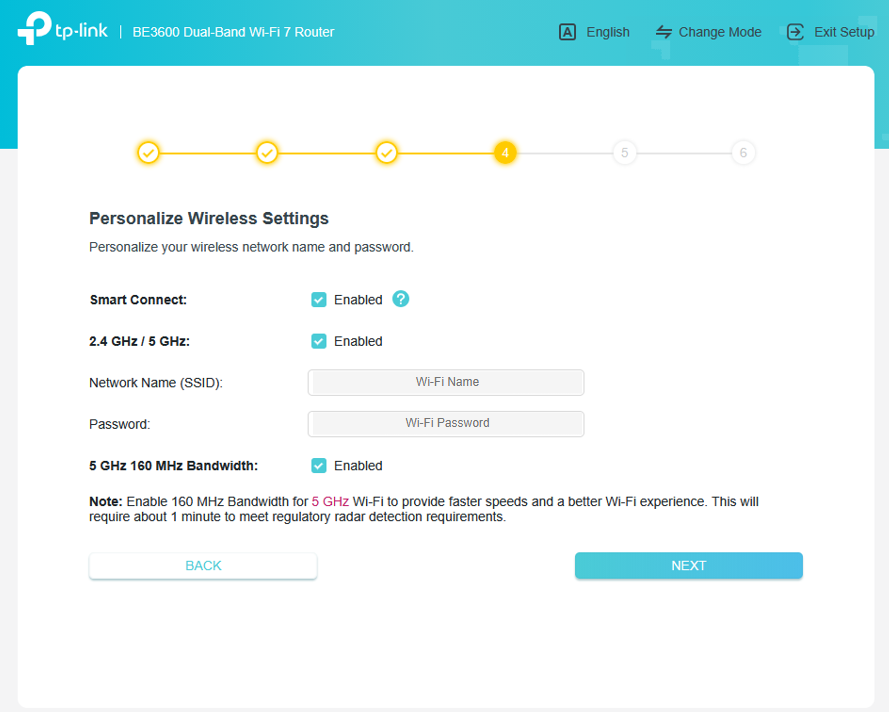
Note that you can manage 2.4GHz and 5GHz separately when you untick [Smart Connect].
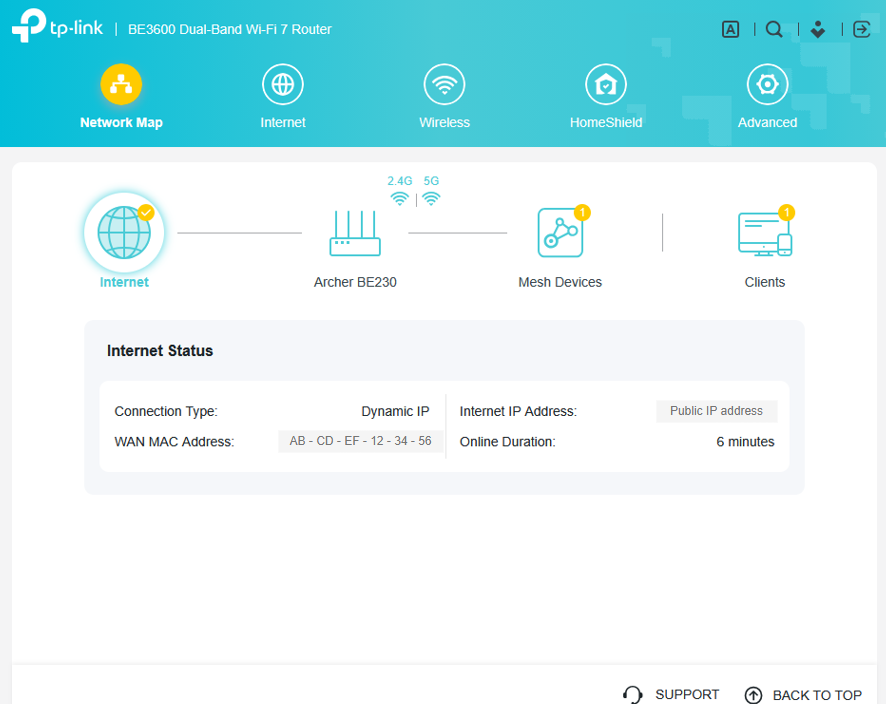
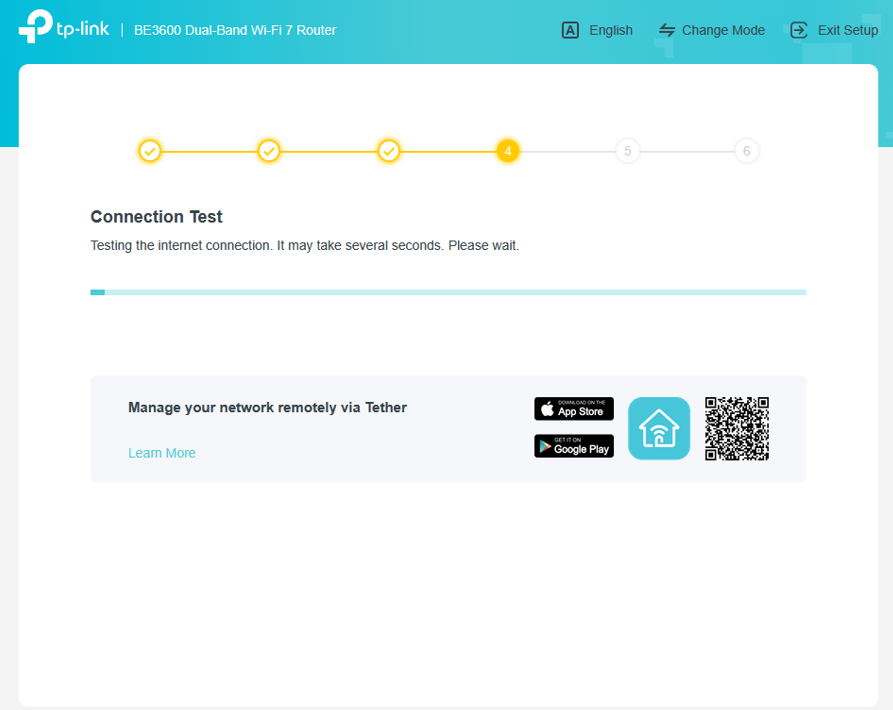
(7) Connection Test
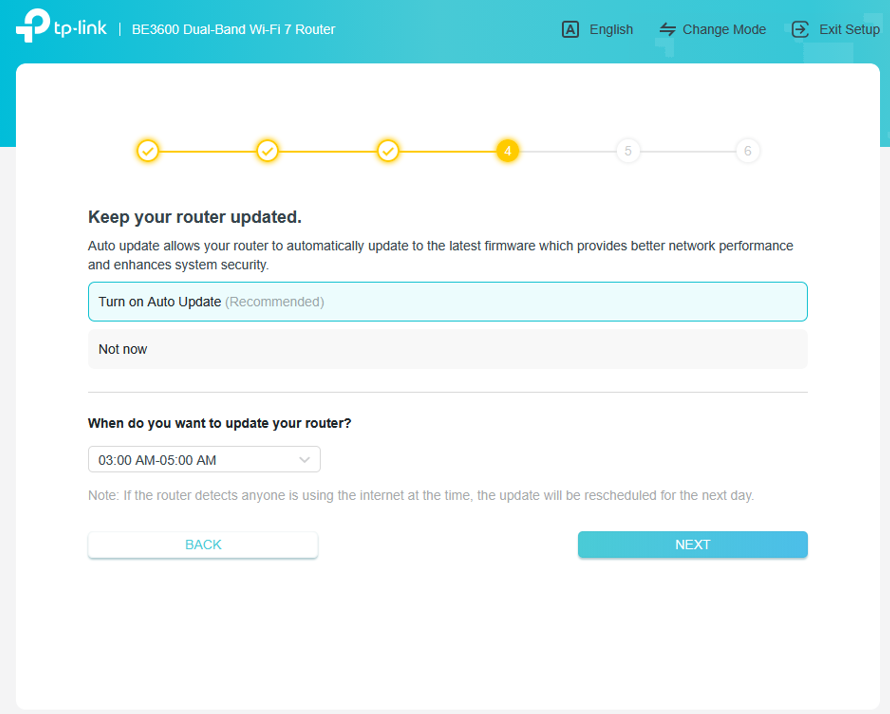
(8) Firmware Auto Update Schedule (Recommended)
(1) Summary
(2) Check Connection and Status